
티스토리 뷰
Push-to-Talk with the Bluetooth Button You Already Have – Devices that work with ISSUH
Bluesys 2026. 10. 28. 03:35
Hello, I'm the developer behind ISSUH.
In my last post I shared how ISSUH started as a direct-trade app and grew to include calls, push-to-talk and chat.
Today I'd like to talk about an easier way to use push-to-talk: Bluetooth buttons.
Push-to-talk is for busy hands
You usually need push-to-talk when your hands are busy.
You're driving, working with gloves on, or holding motorcycle handlebars.
Pulling out your phone, waking the screen and finding the button every time just doesn't feel like a radio.
So ISSUH lets you talk with a Bluetooth button.
Press to talk, release to finish. Your phone stays in your pocket.
Devices you can use
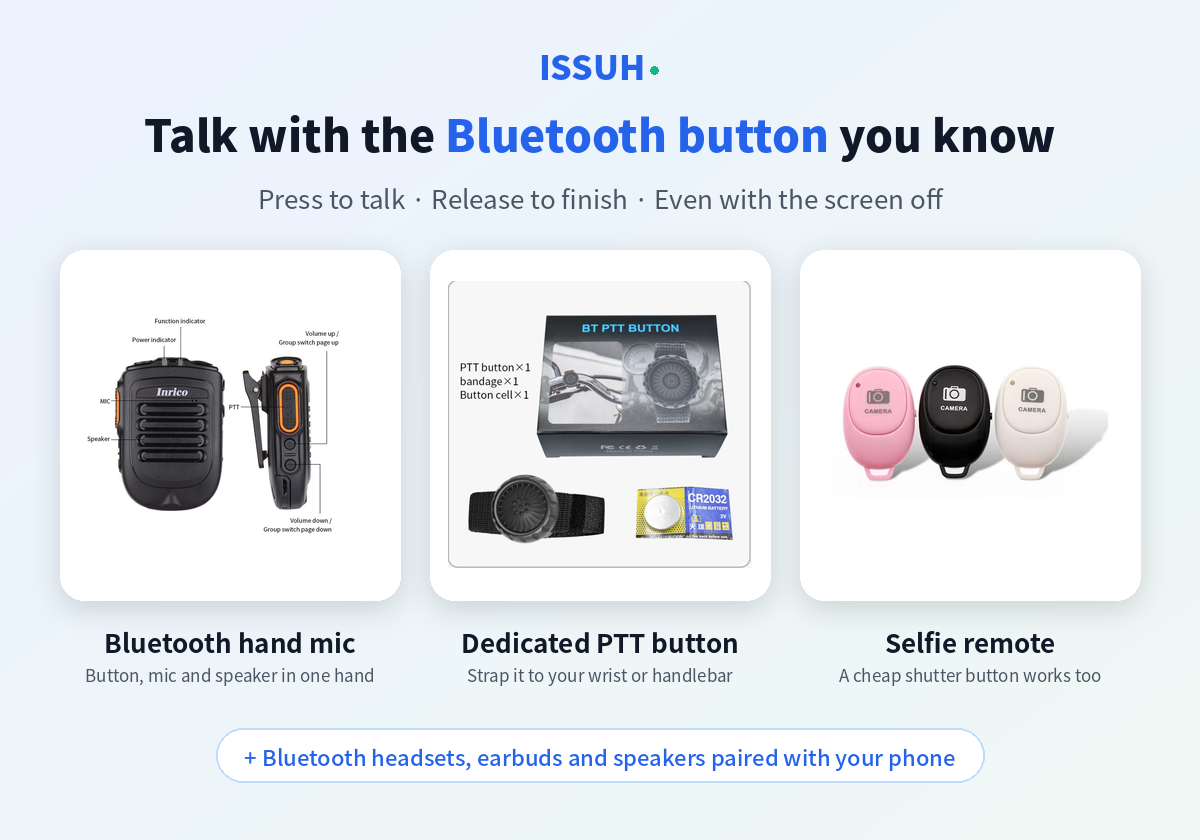
■ Bluetooth hand mic
A radio-style speaker mic you clip to your shoulder or chest.
The PTT button, mic and speaker are all in one, so it feels like a real radio.
■ Dedicated PTT button
A small button you strap to your wrist or handlebar.
Zello-compatible PTT buttons (such as the PTT-Z01) work as they are, and they're easy to press even with gloves on.
■ Selfie remote
The Bluetooth shutter button you use for photos.
It's cheap and everywhere, and in ISSUH it makes a great PTT button.
■ Bluetooth headsets, earbuds and speakers
ISSUH learns the play or call button on a headset paired with your phone and uses it as the PTT button.
Incoming voice and your own voice both go through the headset.
What one button can do
· Talk even when the screen is off or the phone is locked.
· Register several buttons and use whichever you like.
· Register once, and it reconnects on its own the next time you turn it on.
· See each button's connection status right in the list.
■ Using Bluetooth keypads and keyboard-type buttons for PTT
Buttons that send "keyboard signals" — Bluetooth keypads, keyboard-style
remotes, or the number keys on keypad phones — can be registered as ISSUH
PTT buttons. You can assign a different PTT target to each key, so one press
reaches the person or group you want.
▶ How it works
· It works only while ISSUH is open on screen and the screen is on.
· Any ISSUH window counts (main, messages, PTT, or calls).
· While you've tapped into a text field to type, keys type text instead of
starting PTT.
· The on-screen keyboard never triggers PTT.
▶ Why does the screen need to be on?
Android delivers keyboard signals only to the app currently on screen.
When the screen is off or another app is in front, the key press never
reaches ISSUH.
Getting around this would require something like Accessibility access,
which watches all input on the phone — and Google often flags such apps
as potentially harmful and may block their installation.
ISSUH chooses to keep your phone safe, and this is the best approach
Android currently allows safely.
▶ Want PTT with the screen off?
· Use a dedicated Bluetooth PTT button (e.g. Zello-compatible PTT buttons).
It works even when the screen is off or locked.
· Many keypad-style PTT phones turn the screen on as soon as a key is
pressed, so they work naturally even from a dark screen.
How to register
1. In ISSUH's push-to-talk settings, open "Find a Bluetooth PTT-only button".
2. Press the button on your device once to wake it. Its name appears in the list.
3. Tap the name, then press the PTT button once when asked. That's it.
Good to know
Beyond the devices shown here, we expect many other Bluetooth devices we haven't tested yet to work as well.
We're continuing to work so that even more devices are supported.
· If a button is connected to another PTT app, please close that app first.
· A hand mic may show up twice in the list. Choose the one under "Newly found" or "Previously connected".
· Depending on the phone, connecting several Bluetooth devices at once may make connections less stable.
Try it with the Bluetooth devices you have, and let me know in the comments which ones work and which don't. It helps a lot.
Thank you for reading.
- Total
- Today
- Yesterday
- theme
- PTT app
- 주소줄 검색
- 윈도우 테마
- messenger
- 유머
- zello
- 업데이트 오류
- 오류
- 개인적인 생각
- 무전기앱
- StartED
- AutoIt
- 레지스트리
- ISSUH
- 이명박
- API
- 무전앱
- 젤로
- XP
- 게임
- PTT
- ActiveX
- 롤리팝
- 안드로이드5
- walkie talkie app
- Push to Talk
- WINNT.SIF
- WSH
- Wi-Fi Calling
| 일 | 월 | 화 | 수 | 목 | 금 | 토 |
|---|---|---|---|---|---|---|
| 1 | 2 | 3 | 4 | 5 | 6 | 7 |
| 8 | 9 | 10 | 11 | 12 | 13 | 14 |
| 15 | 16 | 17 | 18 | 19 | 20 | 21 |
| 22 | 23 | 24 | 25 | 26 | 27 | 28 |
| 29 | 30 |